
 Eric Jorge Seguí Parejo

The main theme of Ghost (Casper), as well as the post settings, only come by default with the option to share articles on Facebook and Twitter.
Quite a few social networks are left out, such as Linkedin, Pinterest and Instagram among others.
Adding a new button isn’t very complicated, although you may need to take some data from the default Facebook or Twitter share button, since building it so that it also pulls in custom data can be more complex.
So I’m going to show you how to add share buttons to the Casper theme in Ghost.
Adding a new button
The first thing we’ll need is the logo in .svg format, around 16 pixels in size. If you can’t find the logo in this format, there are web apps that will help you convert the image into this type of file.
Once it’s created, we’ll need to save it in /partials/icons/ and rename the file to the name of the social network followed by .hbs. For example, for Linkedin it would be linkedin.hbs inside the icons folder.
After that, we’ll need to open the floating-header.hbs file, where we’ll see something like this. The highlighted code is what I added to get the Linkedin share button.
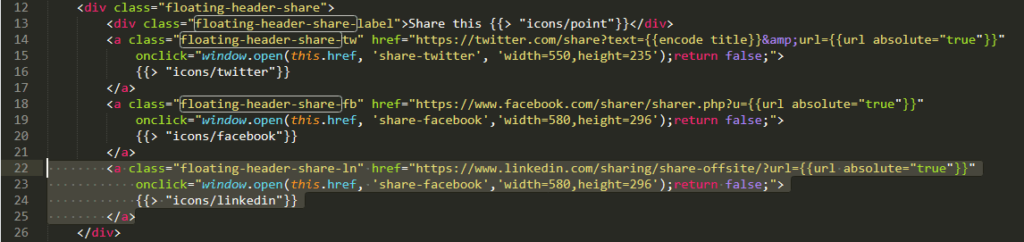
Each of the links shown refers to a share button. The last one, for Linkedin, is a duplicate of the code for Facebook but with a few minor changes.
I changed the URL to the Linkedin share link:
https://www.linkedin.com/sharing/share-offsite/?url={{url absolute=»true»}}
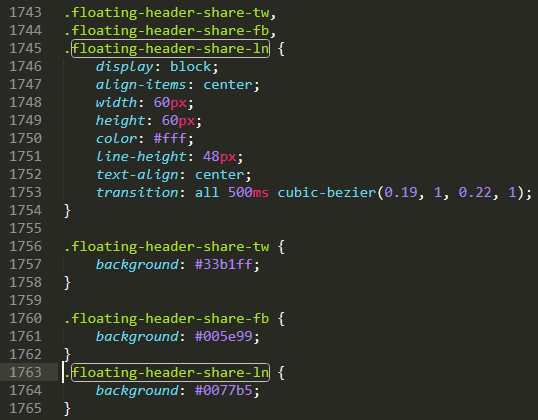
I also changed the class to floating-header-share-ln, because we’ll then need to add the styles in the .css file located in /assests/built/screen.css. If you follow the same design, you’ll end up with something like this:
Finally, you’ll need to insert the icon you saved earlier in the /icons/ folder. Right where it says {{> «icons/facebook»}} in the duplicated code (careful, don’t change the one for Facebook), we replace facebook with the name of the social network we’ve added. In the example we’re working on, it would be {{> «icons/linkedin»}}

Technical SEO consultant in Valencia for more than 16 years. Speaker and organiser at WordCamp Valencia and author on the Semrush and Publisuites blogs. More about me